

What is Applicant search?
Applicant search is a dedicated page in your Applicant Management System (AMS) where you can:
Search and filter all the applicants from all your job ads, based on their name, keywords, job titles, or tags;
View detailed results, including application history, contact details, and more;
Easily return to or re-engage with strong candidates from past roles; and
See the latest applicants across all of your job ads.
How do I access Applicant search?
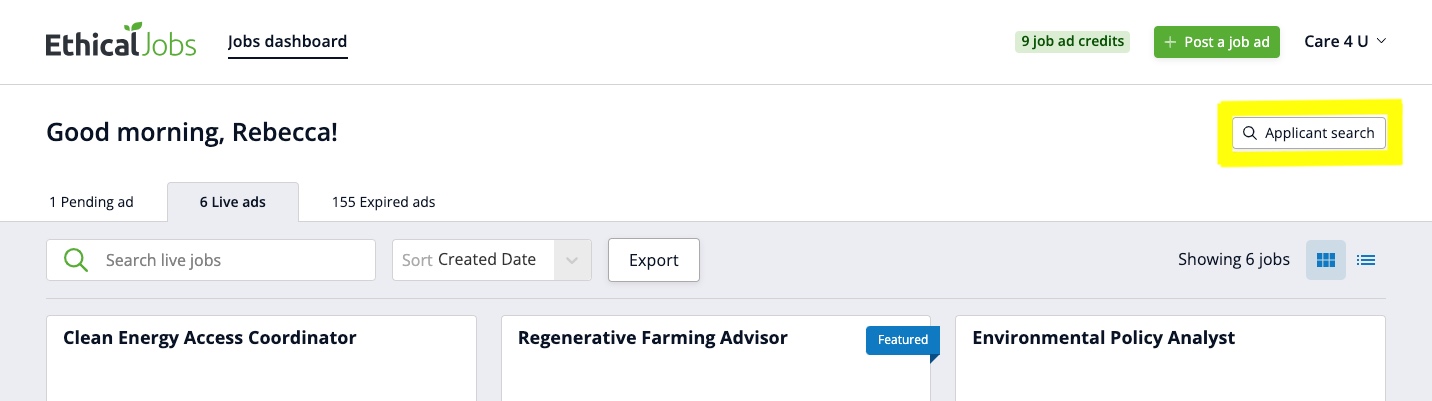
You can access Applicant search by clicking on the "Applicant search" button on the top right of the Jobs dashboard in your AMS:
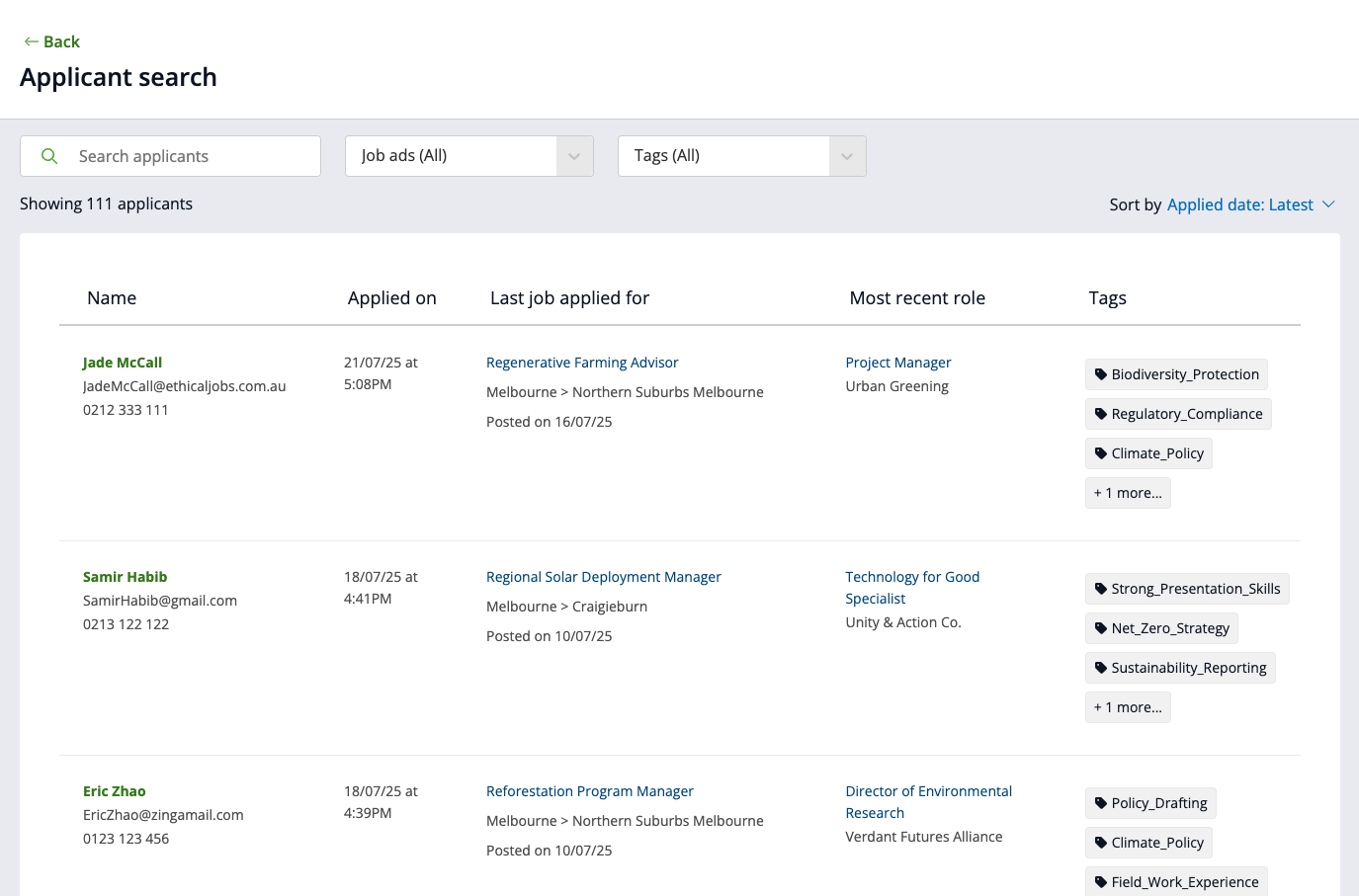
Once you're on the Applicant search page, you'll see:
A list of the most recent applicants for all of your job ads, sorted by application date (newest first); and
Search tools to help you find applicants based on different criteria.
For example:
How do I search for and find a candidate?
When you're looking for one or more candidates, you can search using one or more of the following:
1) Keyword search
Enter any keyword to search applicants across all jobs in your account, instantly. The system will search across:
Applicant’s name (first and last);
Most recent employer;
Most recent role title; and
Email address.
2) Job ad (title) filter
You can use the Job ad filter to search for applicants who applied for a specific job.
Select a job ad from the drop-down, or start typing the job ad title to quickly find it:
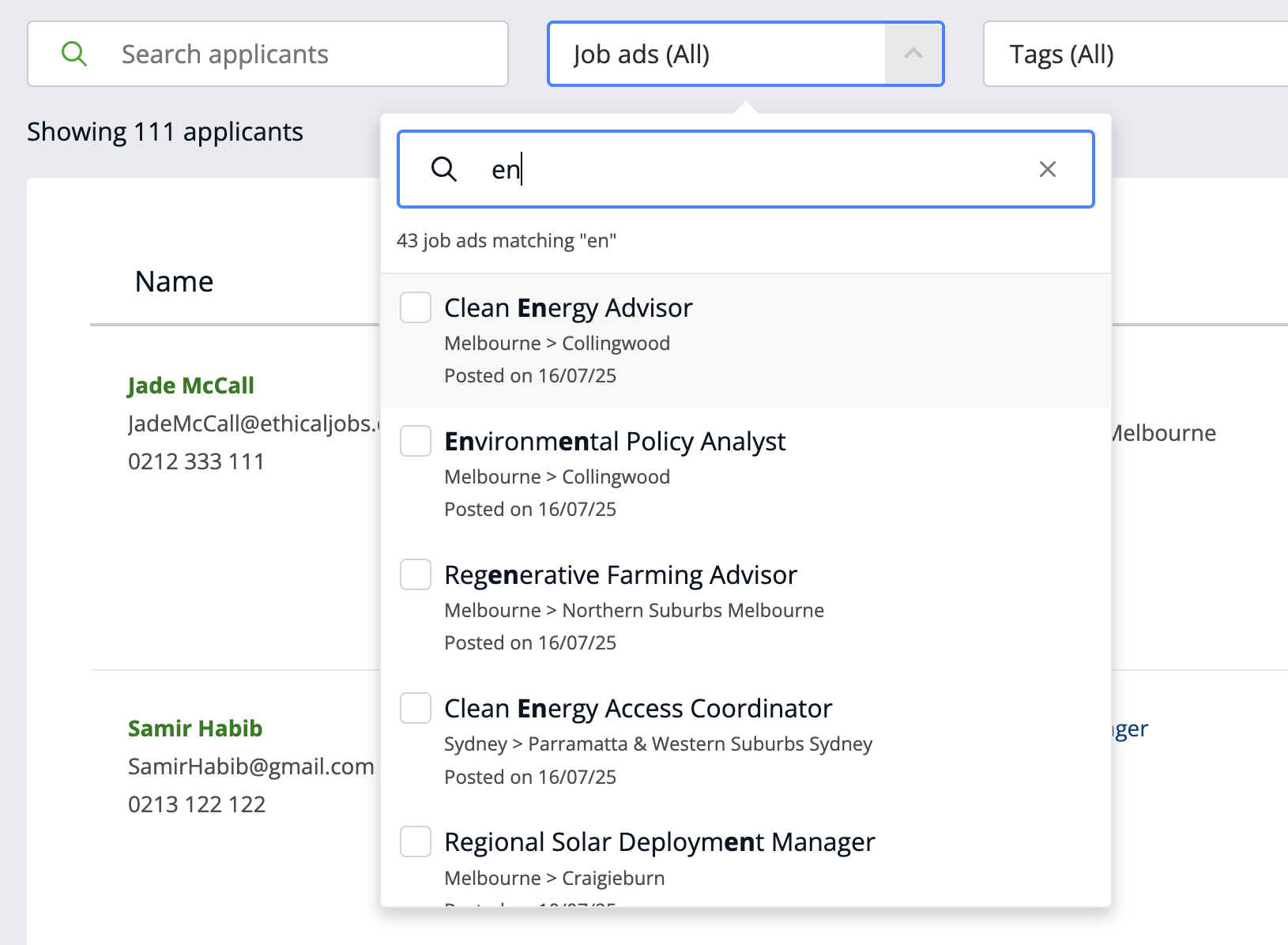
You can select multiple job ad titles to include in your search, and results will instantly show just the applicants who applied for any of the selected jobs.
Note: Specific job access users will only see job ads in the filter for job ads they've been granted access to.
3) Tag Filter
You can use the tag filter to search for applicants with that you have tagged with specific attributes. Type in a tag name or scroll through the list of existing tags to select one or more:
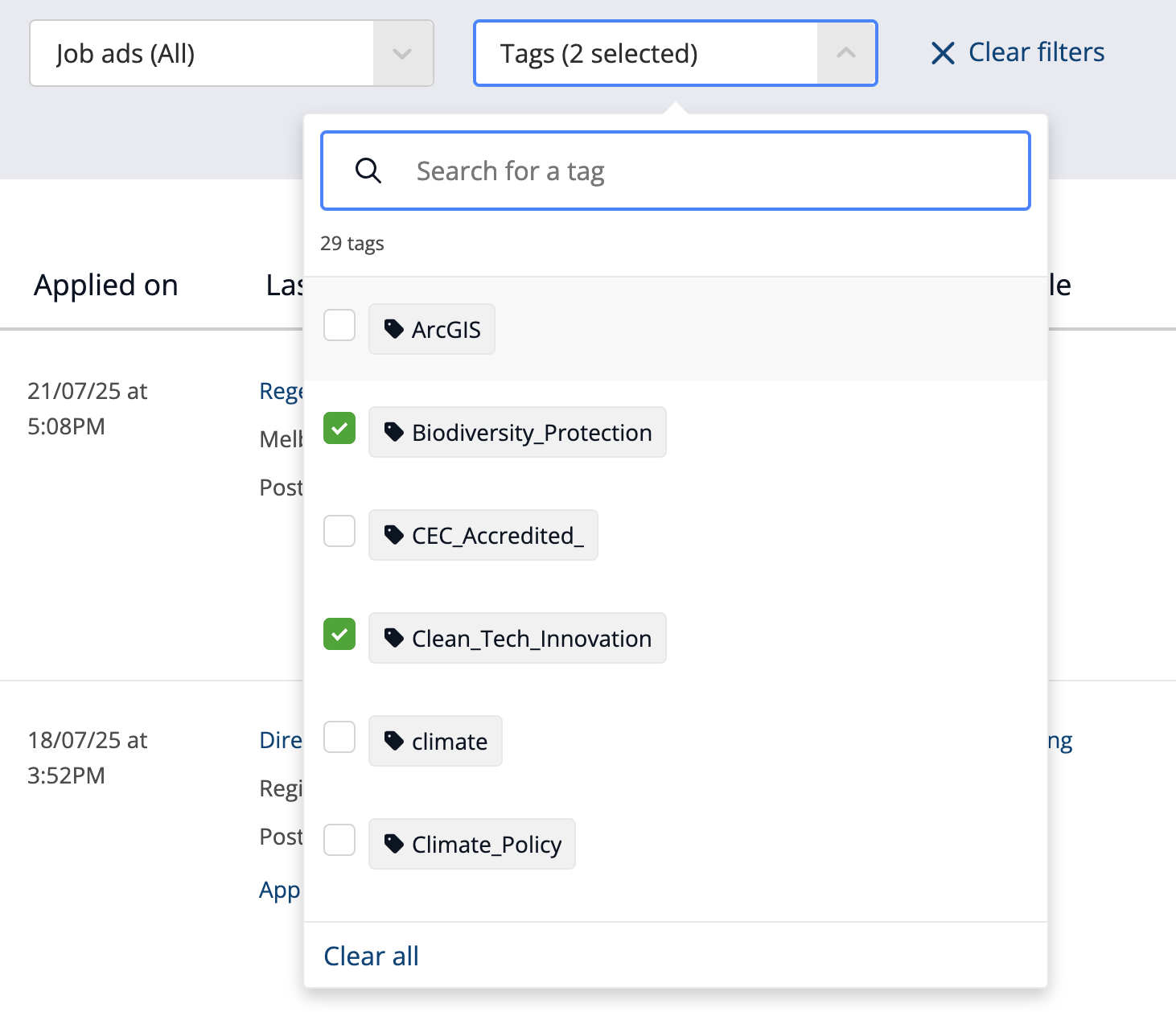
You can filter by one or more tags, and results will instantly show all applicants who match any of the selected tags.
4) Combining keyword search, job title and tag filters
You can combine keyword search, job title and tag filters to narrow your search further. In this case, the system will apply an AND rule, which means only applicants who have applied to one of the selected jobs and have one of the selected tags or keywords will be shown.
What's in the search results?
For each applicant who matches your search you’ll see results that include:
Name, email, and phone number;
Date they applied;
Most recent employer and role title;
The most recent job they applied for; and
Any Tags applied to their most recent application.
If the applicant has applied for multiple roles, you can also:
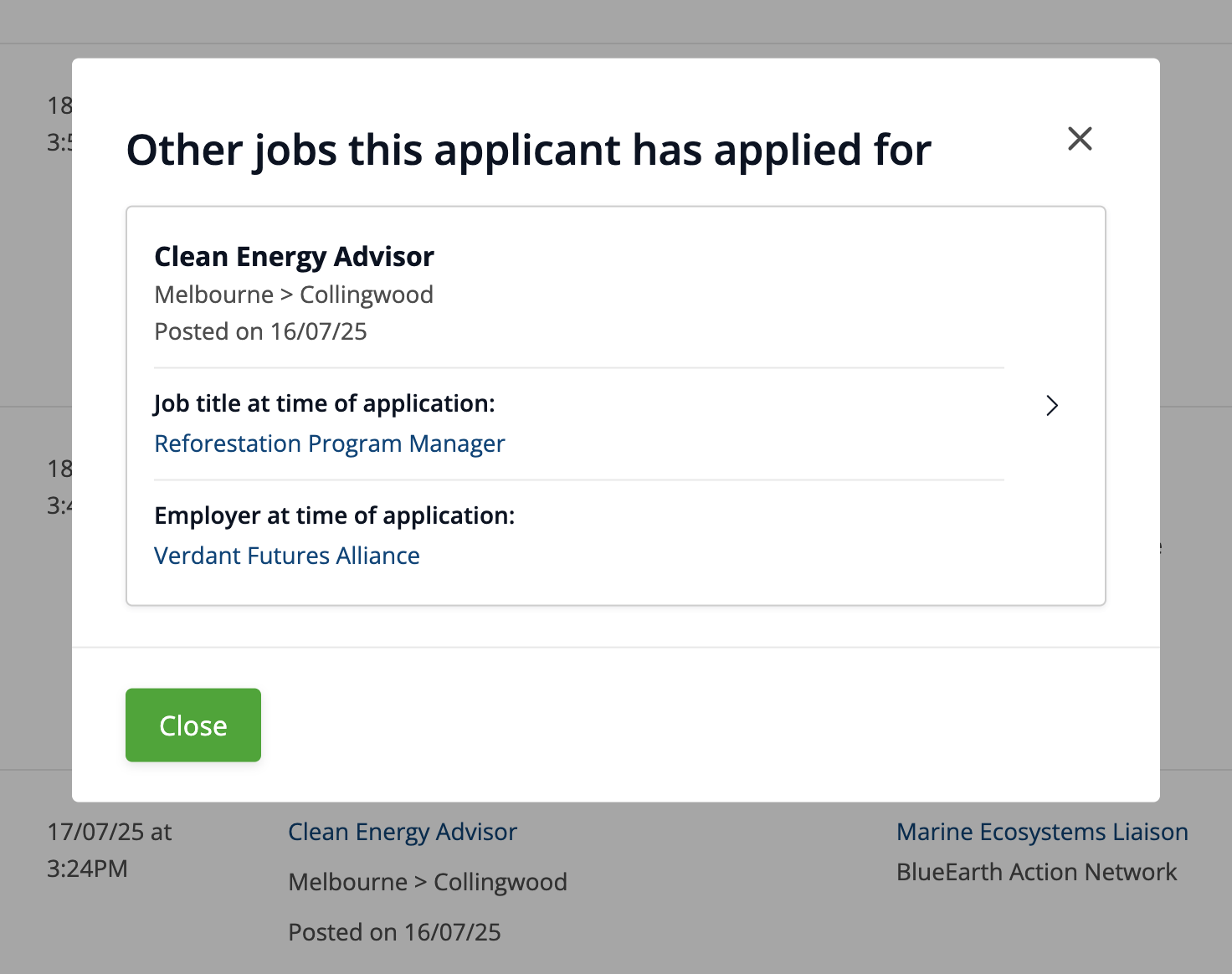
Click through to see a list of their other applications; and
See tag and keyword matches from your search found in their other applications from the same applicant. For example:
How do I see and view the applicant's CV and other documents?
Click on an applicant in the list to open their application for the most recent job they applied for (or for Specific job access users, for the most recent job you have access to) – including their CV/resume and any other documents.
If the applicant has applied to multiple roles at your organisation, click on the "Applied for X other jobs" link on their search result to see the list of their other applications, and then click on an item in the pop-up to see the details and documents for those applications (if you have permission).
Who can use the Applicant search feature?
All users in your account have access to the Applicant search feature.
The account Owner and Full Access users have access to data for every applicant who has applied for any past job you have advertised on EthicalJobs.com.au.
Specific job access users only have access to the applicants who have applied for job ads they've been granted access to, or job ads they have posted themselves.