

Applicant tags let you label applicants in your account with keywords – for example, strong_communicator or management_experience – so you and your team can easily identify, organise, and find the most relevant applicants later, whether in a week or in a year.
Adding a tag
Who can add or remove a tag?
Anyone in your organisation's account who can see the applicants for a particular job that add or remove a tag for the applicant. See here for more information about the different user types and permissions.
How do I add a tag to an applicant?
Choose the applicant you want to tag from the applicant list for a particular job ad.
On right side of you screen you'll see the applicant’s contact details, and just below this, a link to “Add tag”.
Click the “Add tag” link to see the input box.
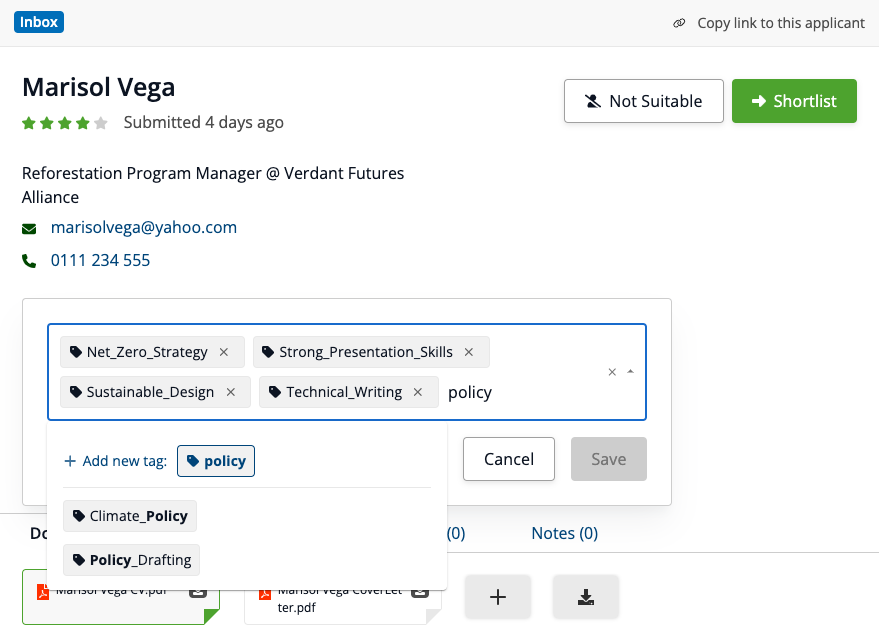
Begin typing your desired tag into the input box. You’ll see tag suggestions based on previous tags created by you or other users in your organisation's account.
You can select a suggested tag, or continue typing to create a new tag.
If you've created a new tag, you must then click to select it or press Return/Enter on your keyboard to create and apply the tag to the applicant:
What limits are there on creating tags?
When you create a new tag, it must follow these rules:
Only letters, numbers, and underscores (_) are allowed.
Spaces will automatically become underscores (e.g. "policy drafting" becomes "policy drafting").
Special characters like $, %, or “quotes” will be removed.
Tags are limited to 20 per applicant.
Viewing tags
Where can I see tags for an applicant?
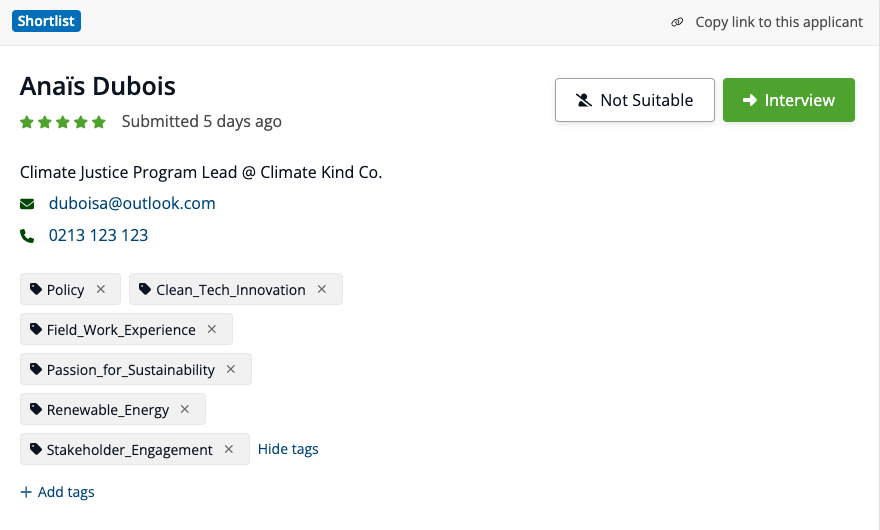
Tags appear directly on the applicant’s record in the applicant list for a job. They will show in the order they were added:
Can I see tags created by other users in my organisation?
Yes. Tags are shared across your organisation, so all users can see all tags that you apply to any applicant for any job ad, as long as they are able to see the applicants.
If I tag an applicant, and they apply for another job, will I see the tag in their other application?
No. Tags are job-specific. When reviewing applicants for a job, you’ll only see the tags that were applied to that applicant for that specific job.
Can applicants see if I tag them?
No - applicants cannot access any data in your employer account, so they cannot see if you add a tag to their application.
Removing tags
How do I remove a tag from an applicant?
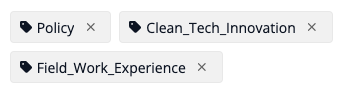
While viewing an applicant in the applicant list for a job, hover over the tag.
Click the “x” icon next to the tag to remove it:
What happens when I remove a tag?
You will no longer see the tag on the applicant’s application for that job.
Other users will no longer see the tag on the applicant’s application for that job.
When you search using a tag, the applicant will no longer appear in the search results for that tag.
If the tag is used on other applicants for that job or another job, they will be unaffected - the tage will continue to exist.
If a tag is removed from all applicants it was applied to, it will also be removed from the saved/suggested tags list.
Searching with tags
Once you've added tags to your applicants, you can use those tags to quickly find the most relevant candidates later in your hiring process.
You can search using tags in two ways:
Search within a job’s applicant list
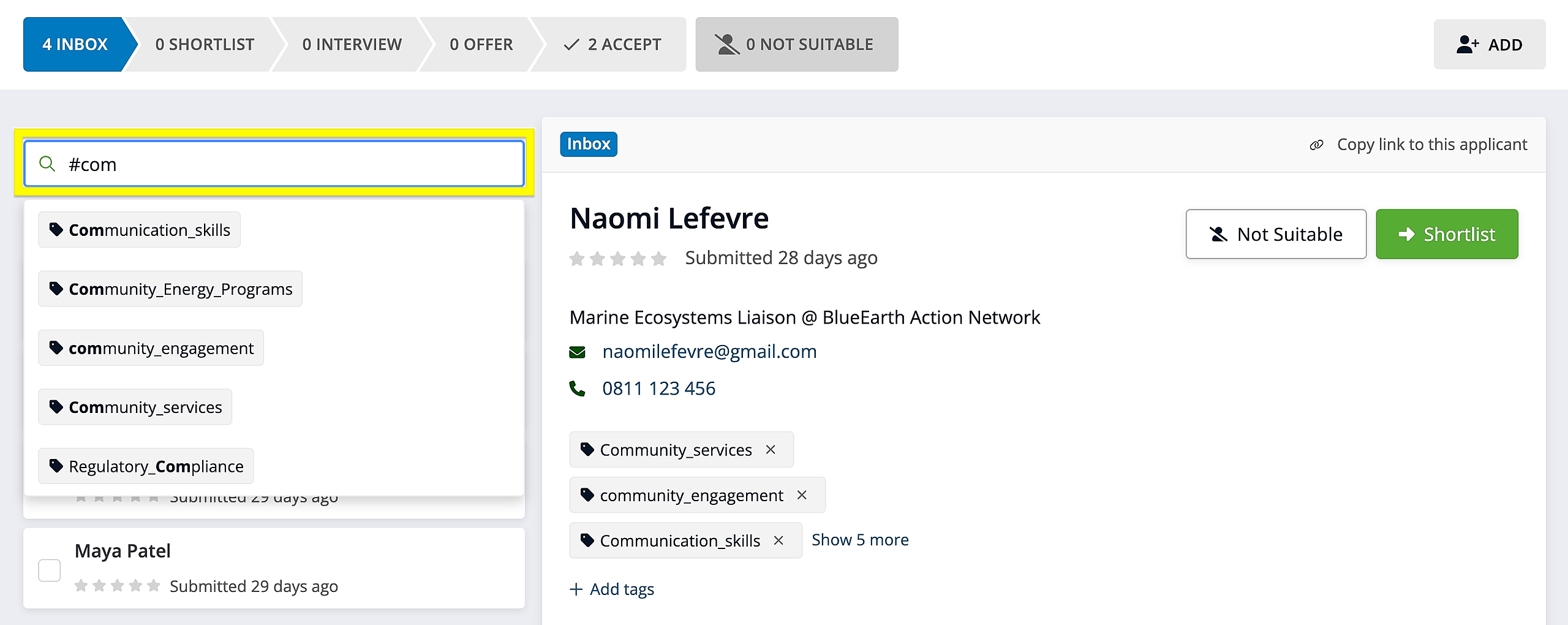
Click into the search bar at the top of the applicant list.
Type # to bring up a list of all tags previously used by your organisation.
Either start typing the tag name to narrow the list, or scroll through to find the tag you're looking for.
Select the tag to filter the list and show only applicants who have that tag applied.
Use the global Applicant search feature
You can also use tags to search for and find applicants that have applied to any of your job ads. See the article on How can I search through all my previous applicants? for details.